15
2026
05

阿里云的xrdp.ini文件 alibabalinux gnome桌面 windows远程 可以xorg登陆

[Globals]

; xrdp.ini file version number

ini_version=1


; fork a new process for each incoming connection

fork=true


; ports to listen on, number alone means listen on all interfaces

; 0.0.0.0 or :: if ipv6 is configured

; space between multiple occurrences

; ALL specified interfaces must be UP when xrdp starts, otherwise xrdp will fail to start

;

; Examples:

;   port=3389

;   port=unix://./tmp/xrdp.socket

;   port=tcp://.:3389                           127.0.0.1:3389

;   port=tcp://:3389                            *:3389

;   port=tcp://<any ipv4 format addr>:3389      192.168.1.1:3389

;   port=tcp6://.:3389                          ::1:3389

;   port=tcp6://:3389                           *:3389

;   port=tcp6://{<any ipv6 format addr>}:3389   {FC00:0:0:0:0:0:0:1}:3389

;   port=vsock://<cid>:<port>

port=3389


; if used inside a Hyper-V VM through vmconnect and bound on vsock,

; turn this on to enable wider security protocol support.

#vmconnect=true


; Unprivileged User name and group to run the xrdp daemon.

; It is HIGHLY RECOMMENDED you set these values. See the xrdp.ini(5)

; manpage for more information on setting and checking these.

runtime_user=xrdp

runtime_group=xrdp


; regulate if the listening socket use socket option tcp_nodelay

; no buffering will be performed in the TCP stack

tcp_nodelay=true


; regulate if the listening socket use socket option keepalive

; if the network connection disappear without close messages the connection will be closed

tcp_keepalive=true


; set tcp send/recv buffer

; These parameters are largely historic. On systems with dynamic TCP

; buffer sizes, setting them manually will either impact performance or

; waste memory

#tcp_send_buffer_bytes=32768

#tcp_recv_buffer_bytes=32768


; security layer can be 'tls', 'rdp' or 'negotiate'

; for client compatible layer

security_layer=negotiate


; minimum security level allowed for client for classic RDP encryption

; use tls_ciphers to configure TLS encryption

; can be 'none', 'low', 'medium', 'high', 'fips'

crypt_level=high


; X.509 certificate and private key

; openssl req -x509 -newkey rsa:2048 -nodes -keyout key.pem -out cert.pem -days 365

certificate=

key_file=


; [Debug] Log file for TLS pre-master secrets - see xrdp.ini(5)

#tls_pms_log_file=/tmp/xrdp-pms/premaster.log


; set SSL protocols

; can be comma separated list of 'SSLv3', 'TLSv1', 'TLSv1.1', 'TLSv1.2', 'TLSv1.3'

ssl_protocols=TLSv1.2, TLSv1.3

; set TLS cipher suites

#tls_ciphers=HIGH


; concats the domain name to the user if set for authentication with the separator

; for example when the server is multi homed with SSSd

#domain_user_separator=@


; The following options will override the keyboard layout settings.

; These options are for DEBUG and are not recommended for regular use.

#xrdp.override_keyboard_type=0x04

#xrdp.override_keyboard_subtype=0x01

#xrdp.override_keylayout=0x00000409


; Section name to use for automatic login if the client sends username

; and password. If empty, the domain name sent by the client is used.

; If empty and no domain name is given, the first suitable section in

; this file will be used.

autorun=


allow_channels=true

allow_multimon=true

bitmap_cache=true

bitmap_compression=true

bulk_compression=true

#hidelogwindow=true

max_bpp=32

new_cursors=true

; fastpath - can be 'input', 'output', 'both', 'none'

use_fastpath=both

; when true, userid/password *must* be passed on cmd line. If the password

; is incorrect, the login will fail

#require_credentials=true

; when true, the userid will be used to try to authenticate

#enable_token_login=true

; You can set the PAM error text in a gateway setup (MAX 256 chars)

#pamerrortxt=change your password according to policy at http://url


;

; colors used by windows in RGB format

;

#black=000000

grey=e1e1e1

dark_grey=b4b4b4

blue=0078d7

dark_blue=0078d7

#white=ffffff

#red=ff0000

#green=00ff00

#background=626c72


;

; Select a default fv1 font

;

; This parameter is a comma-separated list of DPI:name pairs.

; The list is scanned from left-to-right. The font used is the first

; font whose DPI value is less-than-or-equal to the vertical DPI of

; the monitor used for the login screen.

#fv1_select=130:sans-18.fv1,0:sans-10.fv1

; Default DPI used for a monitor when that information is unknown

#default_dpi=96


;

; configure login screen

;


; Login Screen Window Title

#ls_title=My Login Title


; top level window background color in RGB format

ls_top_window_bg_color=003057


; width and height of login screen

;

; When the sans-10.fv1 font is selected, these values are in pixels.

; For other fonts, these values (and other size values) will be scaled

; appropriately to preserve the proportions of the login screen.

;

; The default height allows for about 5 fields to be comfortably displayed

; above the buttons at the bottom. To display more fields, make <ls_height>

; larger, and also increase <ls_btn_ok_y_pos> and <ls_btn_cancel_y_pos>

; below

;

ls_width=350

ls_height=360


; login screen background color in RGB format

ls_bg_color=f0f0f0


; optional background image filename. BMP format is always supported,

; but other formats will be supported if xrdp is build with imlib2

; The transform can be one of the following:-

;     none  : No transformation. Image is placed in bottom-right corner

;             of the screen.

;     scale : Image is scaled to the screen size. The image aspect

;             ratio is not preserved.

;     zoom  : Image is scaled to the screen size. The image aspect

;             ratio is preserved by clipping the image.

#ls_background_image=

#ls_background_transform=none


; logo

; full path to file or file in shared folder. BMP format is always supported,

; but other formats will be supported if xrdp is build with imlib2

; For transform values, see 'ls_background_transform'. The logo width and

; logo height are ignored for a transform of 'none'.

ls_logo_filename=

ls_logo_transform=scale

ls_logo_width=250

ls_logo_height=110

ls_logo_x_pos=55

ls_logo_y_pos=35


; for positioning labels such as username, password etc

ls_label_x_pos=30

ls_label_width=68


; for positioning text and combo boxes next to above labels

ls_input_x_pos=110

ls_input_width=210


; y pos for first label and combo box

ls_input_y_pos=158


; OK button

ls_btn_ok_x_pos=142

ls_btn_ok_y_pos=308

ls_btn_ok_width=85

ls_btn_ok_height=30


; Cancel button

ls_btn_cancel_x_pos=237

ls_btn_cancel_y_pos=308

ls_btn_cancel_width=85

ls_btn_cancel_height=30


[Logging]

; Note: Log levels can be any of: core, error, warning, info, debug, or trace

LogFile=xrdp.log

LogLevel=INFO

EnableSyslog=true

#SyslogLevel=INFO

#EnableConsole=false

#ConsoleLevel=INFO

#EnableProcessId=false


[LoggingPerLogger]

; Note: per logger configuration is only used if xrdp is built with

; --enable-devel-logging

#xrdp.c=INFO

#main()=INFO


[Channels]

; Channel names not listed here will be blocked by XRDP.

; You can block any channel by setting its value to false.

; IMPORTANT! All channels are not supported in all use

; cases even if you set all values to true.

; You can override these settings on each session type

; These settings are only used if allow_channels=true

rdpdr=true

rdpsnd=true

drdynvc=true

cliprdr=true

rail=true

xrdpvr=true


; for debugging xrdp, in section xrdp1, change port=-1 to this:

#port=/tmp/.xrdp/xrdp_display_10


;

; Session types

;


; Some session types such as Xorg and Xvnc start a display server.

; Startup command-line parameters for the display server are configured

; in sesman.ini. See and configure also sesman.ini.

[Xorg]

name=Xorg

lib=libxup.so

username=ask

password=ask

port=-1

code=20

; Frame capture interval (milliseconds)

h264_frame_interval=16

rfx_frame_interval=32

normal_frame_interval=40


[Xvnc]

name=Xvnc

lib=libvnc.so

username=ask

password=ask

#ip=127.0.0.1

; port is -1 (sesman controlled), numeric (TCP connection) or an

; absolute path (UDS connection).

port=-1

; For sesman-controlled Xvnc, the 'code' parameter can be used to switch

; the connection protocol:-

; 0 - Use a TCP connection

; 1 - Use a Unix Domain Sockets (UDS) connection

;     UDS connections are not supported by older VNC servers, but are

;     supported by TigerVNC. If you select this option, comment out

;     (or remove) the 'ip=' setting.

;

; UDS connections are recommended, if your X server supports them. They are

; more secure, and untroubled by firewalls.

;

; On FIPS-based systems, TCP CANNOT be used, as the classic algorithm used for

; VNC password files is no longer considered secure by FIPS

;

; The default value is 0 on non-FIPS systems, and 1 on FIPS-based systems.

code=1

#xserverbpp=24

#delay_ms=2000

; Disable requested encodings to support buggy VNC servers

; (1 = ExtendedDesktopSize)

#disabled_encodings_mask=0


; Generic VNC Proxy

; Tailor this to specific hosts and VNC instances by specifying an ip

; and port and setting a suitable name.

#[vnc-any]

#name=vnc-any

#lib=libvnc.so

#ip=ask

#port=ask5900

#username=na

#password=ask

#pamusername=asksame

#pampassword=asksame

#delay_ms=2000

; Use one of these to connect to a chansrv instance created outside of sesman

; (e.g. as part of an x11vnc console session). Replace 'n' with the

; display number of the session, and (if applicable) 'u' with the numeric

; UID of the session.

;

; If 'username' or 'pamusername' is set, you probably don't need to use

; the two parameter variant with 'u'.

#chansrvport=DISPLAY(n)

#chansrvport=DISPLAY(n,u)


; Generic RDP proxy using NeutrinoRDP

; Tailor this to specific hosts by specifying an ip and port and setting

; a suitable name.

#[neutrinordp-any]

#name=neutrinordp-any

; To use this section, you should build xrdp with configure option

; --enable-neutrinordp.

#lib=libxrdpneutrinordp.so

#ip=ask

#port=ask3389

#username=ask

#password=ask

; Uncomment the following lines to enable PAM authentication for proxy

; connections.

#pamusername=ask

#pampassword=ask

; Currently NeutrinoRDP doesn't support dynamic resizing. Uncomment

; this line if you're using a client which does.

#enable_dynamic_resizing=false

; By default, performance settings requested by the RDP client are ignored

; and chosen by NeutrinoRDP. Uncomment this line to allow the user to

; select performance settings in the RDP client.

#perf.allow_client_experiencesettings=true

; Override any experience setting by uncommenting one or more of the

; following lines.

#perf.wallpaper=false

#perf.font_smoothing=false

#perf.desktop_composition=false

#perf.full_window_drag=false

#perf.menu_anims=false

#perf.themes=false

#perf.cursor_blink=false

; By default NeutrinoRDP supports cursor shadows. If this is giving

; you problems (e.g. cursor is a black rectangle) try disabling cursor

; shadows by uncommenting the following line.

#perf.cursor_shadow=false

; By default, NeutrinoRDP uses the keyboard layout of the remote RDP Server.

; If you want to tell the remote the keyboard layout of the RDP Client,

; by uncommenting the following line.

#neutrinordp.allow_client_keyboardLayout=true

; The following options will override the remote keyboard layout settings.

; These options are for DEBUG and are not recommended for regular use.

#neutrinordp.override_keyboardLayout_mask=0x0000FFFF

#neutrinordp.override_kbd_type=0x04

#neutrinordp.override_kbd_subtype=0x01

#neutrinordp.override_kbd_fn_keys=12

#neutrinordp.override_kbd_layout=0x00000409


; You can override the common channel settings for each session type

#channel.rdpdr=true

#channel.rdpsnd=true

#channel.drdynvc=true

#channel.cliprdr=true

#channel.rail=true

#channel.xrdpvr=true


[xrdp1]

name=sesman-X11

lib=libxup.so

username=ask

password=ask

ip=127.0.0.1

port=-1

code=20


[channels]

; for sound

audio=true

rdpsnd=true

尤其是最后xrdp1和channels的添加


15
2026
05

阿里云 alibabalinux 安装gnome桌面,然后xrdp,然后有xorg,然后安装音频

阿里云 ECS (Alibaba Cloud Linux + GNOME) RDP 远程声音配置指南

适用场景

云服务器:阿里云 ECS(或其他云服务器)

操作系统:Alibaba Cloud Linux / CentOS 8 / RHEL 8

桌面环境:GNOME

远程协议:RDP (xrdp)

问题:Windows 远程连接后听不到声音

________________________________________

核心原理

云服务器默认没有物理声卡,需要:

1.编译 PulseAudio 源码(生成头文件)

2.编译安装 pulseaudio-module-xrdp(RDP 音频重定向模块)

3.配置 xrdp 和 PulseAudio,让声音通过 RDP 传输到 Windows 客户端

________________________________________

完整操作步骤

第一步:安装基础开发工具和依赖

bash

复制

下载

sudo yum install -y epel-release

sudo yum install -y git gcc gcc-c++ make autoconf automake libtool \

    pulseaudio-libs-devel meson ninja-build \

    glib2-devel libcap-devel libsndfile-devel \

    speexdsp-devel alsa-lib-devel dbus-devel \

    libtdb-devel openssl-devel libudev-devel lirc-devel \

    check check-devel doxygen

第二步:下载并编译 PulseAudio 源码

bash

复制

下载

cd /tmp

wget https://freedesktop.org/software/pulseaudio/releases/pulseaudio-15.0.tar.xz

tar -xf pulseaudio-15.0.tar.xz

cd pulseaudio-15.0


# 配置构建(禁用文档以加快编译)

meson setup build -Ddocumentation=false


# 编译

ninja -C build

第三步:下载并编译 xrdp 音频模块

bash

复制

下载

cd /tmp

git clone --depth=1 https://github.com/neutrinolabs/pulseaudio-module-xrdp.git

cd pulseaudio-module-xrdp


# 生成配置

./bootstrap


# 指向 PulseAudio 源码目录

./configure PULSE_DIR=/tmp/pulseaudio-15.0 PULSE_CONFIG_DIR=/tmp/pulseaudio-15.0/build


# 编译安装

make

sudo make install

第四步:配置自动加载

bash

复制

下载

# 创建 PulseAudio 自动加载配置

mkdir -p ~/.config/pulse/default.pa.d/

cat > ~/.config/pulse/default.pa.d/xrdp.pa << 'EOF'

### Load xrdp module for RDP audio redirection

.ifexists module-xrdp-sink.so

load-module module-xrdp-sink

.endif

.ifexists module-xrdp-source.so

load-module module-xrdp-source

.endif

EOF


# 设置 xrdp-sink 为默认输出设备(登录时自动执行)

echo 'pactl set-default-sink xrdp-sink' >> ~/.profile

第五步:配置 xrdp 服务端

bash

复制

下载

# 编辑 /etc/xrdp/xrdp.ini,确保 [channels] 部分有:

# audio=true

# rdpsnd=true


sudo sed -i '/\[channels\]/,/^$/ s/^;*audio=true/audio=true/' /etc/xrdp/xrdp.ini

sudo sed -i '/\[channels\]/,/^$/ s/^;*rdpsnd=true/rdpsnd=true/' /etc/xrdp/xrdp.ini


# 重启 xrdp

sudo systemctl restart xrdp

第六步:Windows RDP 客户端设置

在 Windows 上打开远程桌面连接(mstsc):

显示选项 → 本地资源 → 远程音频 → 设置

远程音频播放 → 在此计算机上播放

点击确定

第七步:测试声音

重新 RDP 连接后,在服务器终端执行:

bash

复制

下载

# 检查设备

pactl list sinks short


# 播放测试音

paplay /usr/share/sounds/alsa/Front_Center.wav

或者在 GNOME 设置 → 声音 → 输出设备中选择 xrdp-sink,点击测试。

________________________________________

常见问题速查

问题解决方案

pactl list sinks 看不到 xrdp-sink执行 pactl load-module module-xrdp-sink

编译缺依赖根据报错用 yum search 找到对应 devel 包安装

PulseAudio 启动失败检查 XDG_RUNTIME_DIR 环境变量,应为 /run/user/1000

声音卡顿/延迟Windows RDP 客户端降低音频质量为"动态"

重启后声音消失确认 ~/.config/pulse/default.pa.d/xrdp.pa 存在

________________________________________

关键文件路径

文件/目录作用

/usr/lib64/pulse-15.0/modules/module-xrdp-sink.soxrdp 音频模块

~/.config/pulse/default.pa.d/xrdp.pa用户级 PulseAudio 自动加载配置

/etc/xrdp/xrdp.inixrdp 服务配置

/tmp/pulseaudio-15.0/PulseAudio 源码目录(编译用)

________________________________________

这套流程的核心是:让 PulseAudio 识别到 RDP 虚拟出来的音频通道。关键是编译 pulseaudio-module-xrdp 时需要正确的 PulseAudio 源码头文件路径。

以后如果换服务器或重装系统,按这个文档一步步来就行


07
2026
04

CentOS8 Stream安装chrome

先换源:


1. 备份原有配置(重要安全步骤)

# 创建备份目录并移动所有原有的 .repo 文件
sudo mkdir -p /etc/yum.repos.d/backupsudo mv /etc/yum.repos.d/*.repo /etc/yum.repos.d/backup/

2. 创建并编辑新的源配置文件

使用文本编辑器(如 vim 或 nano)创建 /etc/yum.repos.d/CentOS-Stream.repo 文件:


sudo vim /etc/yum.repos.d/CentOS-Stream.repo

然后,将以下内容完整复制并粘贴到文件中:


[BaseOS]
name=CentOS-Stream-8 - Base
baseurl=https://mirrors.aliyun.com/centos/8-stream/BaseOS/x86_64/os/
pgcheck=1
enabled=1
gpgkey=https://mirrors.aliyun.com/centos/RPM-GPG-KEY-CentOS-Official
[AppStream]
name=CentOS-Stream-8 - AppStream
baseurl=https://mirrors.aliyun.com/centos/8-stream/AppStream/x86_64/os/
gpgcheck=1
enabled=1
gpgkey=https://mirrors.aliyun.com/centos/RPM-GPG-KEY-CentOS-Official
[extras]
name=CentOS-Stream-8 - Extras
baseurl=https://mirrors.aliyun.com/centos/8-stream/extras/x86_64/os/
gpgcheck=1
enabled=1
gpgkey=https://mirrors.aliyun.com/centos/RPM-GPG-KEY-CentOS-Official

注意:baseurl 中的 /8-stream/ 路径是专门为 CentOS Stream 8 设计的


3. 清理并重建缓存

配置完成后,执行以下命令使新源生效

sudo dnf clean all
sudo dnf makecache

1. 添加 Google Chrome 软件源

创建一个新的仓库文件,让系统知道去哪里下载 Chrom

sudo tee /etc/yum.repos.d/google-chrome.repo <<EOF
[google-chrome]
name=google-chrome
baseurl=http://dl.google.com/linux/chrome/rpm/stable/\$basearch 
enabled=1
gpgcheck=1
gpgkey=https://dl.google.com/linux/linux_signing_key.pub
EOF


2. 导入 Google 的 GPG 签名密钥

这一步是必要的安全验证,确保下载的软件包来自 Google 且未被篡改

sudo rpm --import https://dl.google.com/linux/linux_signing_key.pub

3. 更新软件包缓存

让系统识别刚刚添加的 Chrome 仓库。

sudo dnf update

4. 安装 Chrome

最后,执行安装命令

sudo dnf install google-chrome-stable

安装过程中,系统可能会询问是否导入密钥或确认安装,输入 y 并按回车即可。


19
2026
03

ubuntu24.04修改密码长度低于8位规则

Ubuntu系统中,修改密码长度规则通常是依赖于PAM(Pluggable Authentication Modules)模块的配置。默认情况下,Ubuntu使用了pam_pwquality模块来管理密码策略,其中包括密码长度要求。

修改密码长度规则

要修改密码长度规则,你需要编辑/etc/security/pwquality.conf文件。你可以使用文本编辑器来修改这个文件,例如使用nanovim

  1. 打开终端。

  2. 使用以下命令编辑pwquality.conf文件:

    sudo nano /etc/security/pwquality.conf

    或者使用vim:

    sudo vim /etc/security/pwquality.conf
  3. 在文件中找到或添加以下行来设置密码最小长度:

    minlen = 6


  4. 前面的#去掉

  5. 这里6是你希望设置的密码最小长度。你可以根据需要调整这个数字。

  6. 保存并关闭文件。如果你使用的是nano,可以通过按Ctrl + O保存更改,然后按Ctrl + X退出;如果你使用的是vim,则可以通过输入:wq然后按Enter来保存并退出。

重启PAM服务

修改完配置文件后,为了使更改生效,你可能需要重启PAM服务或整个系统。通常,重启PAM服务就足够了。可以使用以下命令来重启PAM服务:

sudo systemctl restart pam-auth-update.service

或者简单地重启系统:

sudo reboot

验证更改

重启后,你可以通过创建一个新用户或更改现有用户的密码来验证密码长度规则是否生效:

sudo adduser newuser# 或者更改现有用户的密码:sudo passwd username

在设置密码时,系统会强制应用新的密码长度策略。

注意事项

  • 确保设置的密码长度符合组织的安全政策。过短的密码容易被猜测或破解。

  • 如果你在修改配置文件时遇到权限问题,确保你使用了sudo来编辑文件。

  • 在生产环境中,更改密码策略前最好先通知所有用户,并确保他们了解新的安全要求。这有助于避免混乱和可能的用户不满。

通过上述步骤,你应该能够成功修改Ubuntu系统中的密码长度规则。


28
2025
12

Emlog php网站后台编辑器等图标无法正常展示,都是小方块怎么解决?

1205.png

如果是 Windows 操作系统IIS服务器部署emlog,可能会遇到浏览器找不到字体文件(woff/woff2)

产生的错误。这样会导致浏览器无法加载字体图标,这是因为服务器IIS不认woff/woff2 文件类型的

原因。以下是解决方案(也可以自己搜索:"IIS 字体不显示" ,网上也有很多解决该问题的文章):


1.打开IIS,在主界面中点击MIME类型:

2.手动添加MIME类型:

扩展名  MIME类型

.woff application/x-font-woff

.woff2 application/x-font-woff

3.添加完成后,刷新页面就行了。

如果上面方法未能解决,检查是否开启了静态 CDN,emlog 是动态系统并不支持静态CDN,开启

可能会导致字体加载出现跨域问题,无法加载,出现图标无法展示的问题,请关闭CDN。

IIS管理器在 windows控制面板  管理工具  internet信息服务器管理器中 设置中 选择网站,对应的

网站才能看到MINE设置


28
2025
12

Mscomm控件安装问题 License information for TMSComm not found(bcb6) win10

操作步骤:

 1.打开delphi,菜单选择compoents->import Activex control,然后选择那个mscomm32.ocx安装即可。


 2.注册MScomm控件
   开始-》运行-》 regsvr32 MScomm32.ocx

   如果在delphi中使用Mscomm控件出现如下错误提示:

  “License information for TMSComm not found.You cannot  use this  control in design mode.”

   则运行如下操作步骤:

  {
    在程序,运行中运行:regedit,进入注册表,在HEKEY_CLASS_ROOT下的LICENSES下新建项目,
    项目名是:4250E830-6AC2-11cf-8ADB-00AA00C00905
    选中此新建项目的对应的右边的默认右击鼠标,选择修改在数值数据中输入:

    kjljvjjjoquqmjjjvpqqkqmqykypoqjquoun


28
2025
12

win7电脑时间每次开机后总是自己快8小时

正确答案是打开注册表编辑器,regedit。找到HKEY_LOCAL_MACHINE\SYSTEM\CurrentControlSet\Control\TimeZoneInformation。把其中名为RealTimeIsUniversal的的值,设置为0


28
2025
12

防止程序启动两次的方法CreateMutex()

 在工程文件中, WinMain函数里加上以下代码(此代码在BCB6.0下运行):

HANDLE hMutex = CreateMutex(NULL, false"Process");
         
if (GetLastError() == ERROR_ALREADY_EXISTS)
         
{
            CloseHandle(hMutex);
            MessageBox(Application
->Handle, "程序已经在运行中,不能重复启动!""提示", MB_OK +MB_ICONWARNING);
            Application
->Terminate();
            
return 0;
         }

         Application
->CreateForm(__classid(TForm1), &Form1);


主要使用到CreateMutex()函数和GetLastError()以及一个常量ERROR_ALREADY_EXISTS.

当然, 你的程序有窗体的话, 还可以使用FindWindow(). 

void *handle = FindWindow(NULL, WindowName.c_str()); 
if (handle!=NULL)
    
return 0


进程的互斥运行

  正常情况下,一个进程的运行一般是不会影响到其他正在运行的进程的。但是对于某些有特殊要求的如以独占方式使用串行口等硬件设备的程序就要求在其进程运行期间不允许其他试图使用此端口设备的程序运行的,而且此类程序通常也不允许运行同一个程序的多个实例。这就引出了进程互斥的问题。

  实现进程互斥的核心思想比较简单:进程在启动时首先检查当前系统是否已经存在有此进程的实例,如果没有,进程将成功创建并设置标识实例已经存在的标记。此后再创建进程时将会通过该标记而知晓其实例已经存在,从而保证进程在系统中只能存在一个实例。具体可以采取内存映射文件、有名事件量、有名互斥量以及全局共享变量等多种方法来实现。下面就分别对其中具有代表性的有名互斥量和全局共享变量这两种方法进行介绍:

// 创建互斥量
HANDLE m_hMutex = CreateMutex(NULL, FALSE, "Sample07");
// 检查错误代码
if (GetLastError() == ERROR_ALREADY_EXISTS) {
 
// 如果已有互斥量存在则释放句柄并复位互斥量
 CloseHandle(m_hMutex);
 m_hMutex 
= NULL;
 
// 程序退出
 return FALSE;
}


上面这段代码演示了有名互斥量在进程互斥中的用法。代码的核心是CreateMutex()对有名互斥量的创建。CreateMutex()函数可用来创建一个有名或无名的互斥量对象,其函数原型为:

HANDLE CreateMutex(
 LPSECURITY_ATTRIBUTES lpMutexAttributes, 
// 指向安全属性的指针
 BOOL bInitialOwner, // 初始化互斥对象的所有者
 LPCTSTR lpName // 指向互斥对象名的指针
);


如果函数成功执行,将返回一个互斥量对象的句柄。如果在CreateMutex()执行前已经存在有相同名字的互斥量,函数将返回这个已经存在互斥量的句柄,并且可以通过GetLastError()得到错误代码ERROR_ALREADY_EXIST。可见,通过对错误代码ERROR_ALREADY_EXIST的检测可以实现CreateMutex()对进程的互斥。

        建立互斥体,用来同步。如果一个线程获取了互斥体,则要获取该互斥体的第二个线程将被挂起,直到第一个线程释放该互斥体。

参数 
lpMutexAttributes 
指向一个SECURITY_ATTRIBUTES结构的指针,这个结构决定互斥体句柄是否被子进程继承。     
bInitialOwner 
布尔类型,决定互斥体的创建者是否为拥有者 
lpName 
指向互斥体名字字符串的指针。互斥体可以有名字。 
互斥体的好处是可以在进程间共享

心得体会:
    CreateMutex() 用于有独占要求的程序 (在其进程运行期间不允许其他使用此端口设备的程序运行,或不允许同名程序运行)。如有同名程序运行,则通过 GetLastError()得到错误代码 ERROR_ALREADY_EXIST。

刚才又执行了下得出的结果(程序名samp)
       一般情况下:一进入调试阶段,进程管理器中就出现了samp进程,执行到CreateMutex时返回进程句柄,执行到if(GetLastError() == ERROR_ALREADY_EXISTS ) 进行判断时,跳过不执行if中的内容,所以表示没有互斥。
       调试之前先运行debug中的samp.exe再调试:一进入调试阶段,进程管理器中就出现了两个samp进程,执行到CreateMutex时返回进程句柄,执行到if(GetLastError() == ERROR_ALREADY_EXISTS ) 进行判断时,执行if中的内容,表示有互斥。


28
2025
12

为你的C++ Builder 6 安装FastReport 4

声明:以下教程是从网上copy下来的,权当给自己留一份记录,经测试,可用。

 --------------------- 本文来自 feichangfriend 的CSDN 博客 ,全文地址请点击:https://blog.csdn.net/feichangfriend/article/details/9140981?utm_source=copy

以前曾经安装过FastReport数据报表控件,觉得功能不错。现在发现网上已经有4以上的版本下载使用。于是从CCRUN上下载了FastReport V4.7.9进行安装,在下载后发现安装复杂了些,比FastReprot 2.41的版本比较没有自动安装,需要手动编译各部件。于是将安装心得记录给有需要的朋友参考。


一、 卸载旧版本

如果以前未安装过FastReport可以直接跳到下一步。如果安装过以前版本的FastReport在工具栏上会看到FastReport和FR Tools两个选项栏。首先我们要把先前的版本卸载。

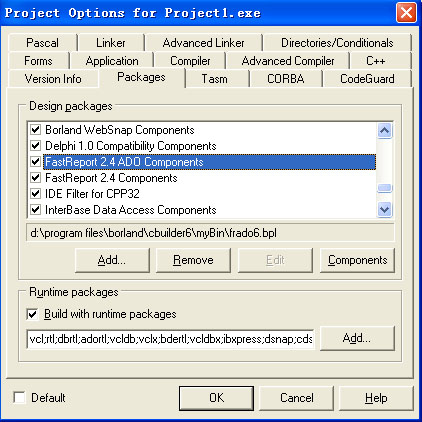
打开BCB的菜单"Project"->Option。然后在Packages的标签栏项目下,找到FastReport的所有部件,如下图的FastReport2.4 ADO Components 和 FastReport 2.4 Components。分别点击它们然后点地击“Remove”按钮逐个删除。卸载完成后返回,工具栏上面的FastReport和FR Tools两个选项栏也同时被清除。

二、设定安装目录

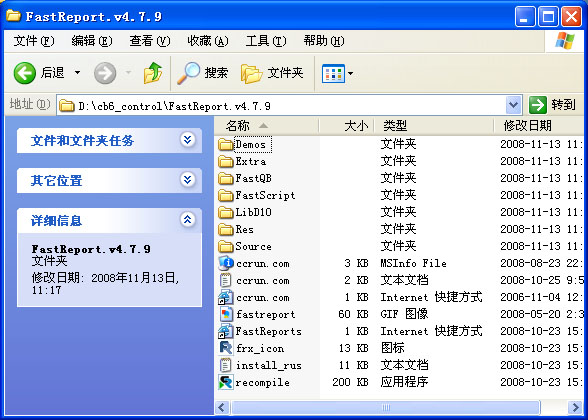
选择一个目录进行安装,现在以D:/cb6_control目录为例,将下载的FastReport V4.7.9解压到此目录。

三、生成安装链接文件

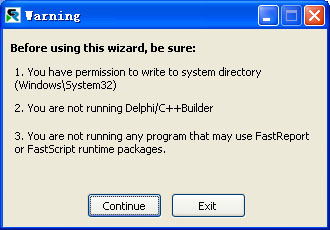
1. 执行recomplie文件,执行文件前请先将BCB6退出。否则程序文件出现提示并不能继续安装。

2. 程序运行后出现提示,主要是目录读写权限、C++Builder是否运行、是否有其它程序运行FastReport的部件包,点击“Continue”。

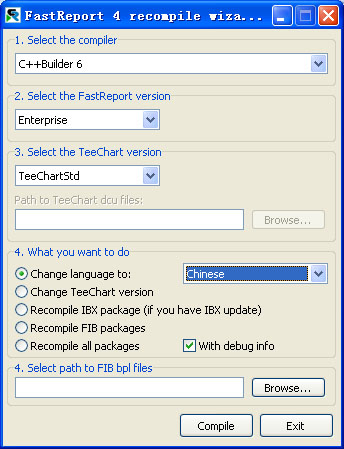
3. 进入到程序界面,选择相应的参数项。

第一项“1. Select the complier”选择程序,选择C++Builer 6。

第二项“2. Select the FastReport version”选择安装FastReport的版本,选择Enterprise。

第三项“3. Select the TeeChart version”,如果不知道的情况下请选择TeeChartStd。

第四项“4.What you want to do”,把“Choose Language to”的选择改为“Chinese”中文版。

完成后点击“Complier”,然后程序将FastReport安装所需要的文件生成到"LibBCB6"目录下。

3. 进入安装目录的/Res/Chinese,执行mk.bat文件生成中文菜单XML文件。并将文件复制到安装目录下的Source目录里面。注意一定要执行这个步聚,否则安装后的FastReport菜单的中文为乱码。


四、编译部件

1. 将刚才生成的LibBCB6的所有文件复制到Source目录下。

2.启动BCB。

3.将Source目录下的文件frx.inc复制到FastQB目录下。

4.编译基本部件,用BCB打开及编译以下部件。

打开FastQB目录下的fqb60.bpk,然后Complie.

打开FastScript目录下的fs6.bpk,然后Complie,编译完成后Install安装.

打开FastScript目录下的fsDB6.bpk,然后Complie,编译完成后Install安装..

打开FastScript目录下的FsADO6.bpk,然后Complie,编译完成后Install安装.

打开FastScript目录下的FsBDE6.bpk,然后Complie,编译完成后Install安装.

5.安装控件。

将LibD10目录下的所有pas文件复制到Source目录。

将Source目录下的所有pas文件复制到C++Builder安装目录的Lib/Release目录里面。

将FastScript目录下的所有pas文件复制到C++Builder安装目录的Lib/Release目录里面。

1) 用BCB打开source目录下的frx6.bpk,然后Complie,编译完成后Install安装。

2) 用BCB打开source目录下的frxDB6.bpk,然后Complie,编译完成后Install安装。

3) 用BCB打开source/ExportPack目录下的frex6.bpk,然后Complie,编译完成后Install安装。

4) 用BCB打开source/Ado目录下的frxADO6.bpk,然后Complie,编译完成后Install安装。

5 用BCB打开source/BDE目录下的frxBDE6.bpk,然后Complie,编译完成后Install安装。(可选安装)

6) 用BCB打开source/DBX目录下的frxDBX6.bpk,然后Complie,编译完成后Install安装。(可选安装)

7) 用BCB打开source目录下的frxTee6.bpk,然后Complie,编译完成后Install安装。(Chart,可选安装)

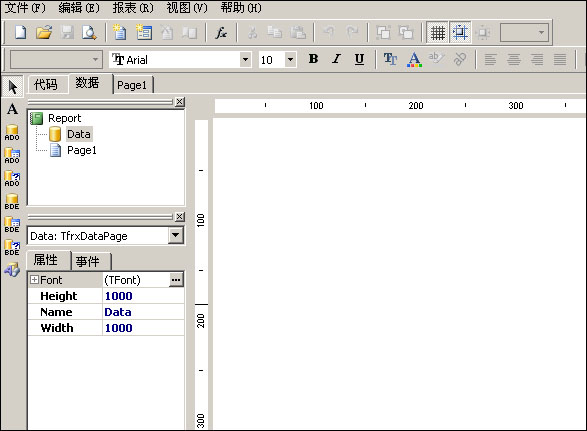
6.完成以上安装后,BCB的工具栏出现FastReport 4.0 和FR4 tools的标签栏。

五、指定头文件和链接库的目录

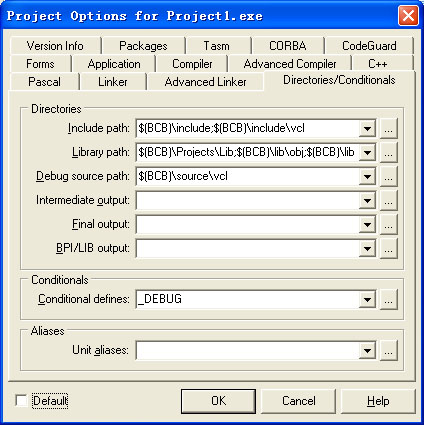
1. 点击BCB菜单“Project”->“Options”,选择“Directories/Conditionals”的标签栏。

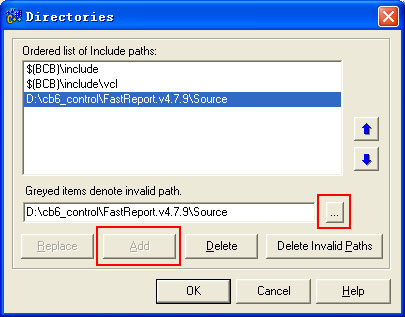
2. 点击“Include Path”的目录选择按钮“...”,弹出界面后点击“...”选择头文件的目录,即Source目录,本例的路径为“D:/cb6_control/gastReport.v4.7.9/Source”,然后点击“Add”按钮。


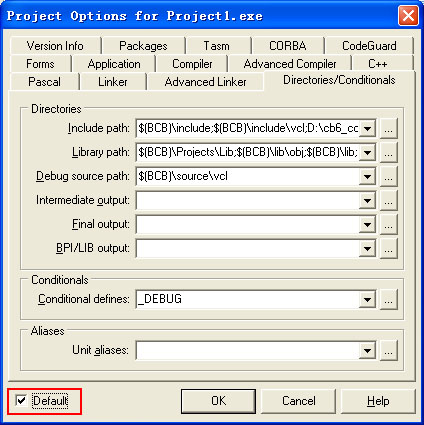
3. 按照同样的方法将“Source”目录添加到“Libary Path”链接库选项。

4.点击选择左下角的Default,然后点击“OK”。


5.重新启动BCB,FastReport4正式安装完毕。


28
2025
12

BCB6默认保存项目选项defalut打钩,以后每个新建工程都一样

BCB6默认保存项目选项defalut打钩,以后每个新建工程都一样

1105.jpg